

IconWorkshop feature coverage
IconWorkshop is not trying to be a general-purpose illustration suite. Its value is in turning approved artwork into shipping icon assets with less friction: platform packaging, batch processing, template-driven small sizes, Adobe transfer, SVG handoff, and built-in asset browsing.


Cross-platform icon creation
IconWorkshop is a Windows authoring application, but it is designed to ship icon assets for far more than Windows itself. The current product page still treats this as the core promise: one tool that packages the right icon family for each target platform.
IntegratedIntegrated workspace and productivity
Current release material repeatedly emphasizes the productive desktop workflow: a fully integrated workspace, drag-and-drop operations, and the tools you need on screen without a lot of setup overhead.
ImageImage Objects and composition
Image Objects remain one of the fastest ways to build icons when you need production speed more than blank-canvas originality. It is still one of the clearest places where IconWorkshop differs from general-purpose image editors.
BatchBatch processing and conversion
IconWorkshop is built for icon production, not just one-off editing. The current product sources continue to present batch processing as a key reason to keep it in the toolchain.
PhotoshopPhotoshop templates
Photoshop templates solve one of the hardest icon problems: making the smallest sizes look intentional instead of automatically downscaled. This remains a current, practical workflow when the final icon family needs hand-tuned small sizes.
AdobeAdobe Photoshop and Illustrator integration
IconWorkshop is strongest when it acts as the packaging layer after artwork has already been approved in Adobe tools. The current product material still positions the Adobe bridges as a major productivity feature.
VisualVisual Studio workflow
The Visual Studio bridge is best understood today as a maintenance and legacy-product workflow. It is still useful when developers need to edit solution icons in place, but the current product page references older supported Visual Studio versions.
AxialisAxialis IconVectors, SVG, and WebP workflow
Recent releases shift IconWorkshop further into an SVG-driven production pipeline. The current changelog shows the direction clearly: broader SVG compatibility in 6.96, then smoother Axialis IconVectors integration and WebP handling in 6.97.
FileFile Explorer, Librarian, and asset management
The built-in File Explorer and Librarian turn IconWorkshop into more than a document editor. They help you work through whole asset inventories, keep reusable sources close, and launch production tasks from the same place you browse the files.
Cross-platform icon creation
IconWorkshop is a Windows authoring application, but it is designed to ship icon assets for far more than Windows itself. The current product page still treats this as the core promise: one tool that packages the right icon family for each target platform.
- Generate Windows ICO files up to 768x768 for Windows 10 and Windows 11.
- Build macOS ICNS, RSC, and BIN icons up to 1024x1024 from the same workstation.
- Export alpha-enabled PNG assets for Linux, Android, and iOS workflows when those platforms need raster deliverables instead of native icon containers.
- Open existing ICO and ICNS files, inspect them, and convert them in either direction when you inherit a mixed platform asset library.
Integrated workspace and productivity
Current release material repeatedly emphasizes the productive desktop workflow: a fully integrated workspace, drag-and-drop operations, and the tools you need on screen without a lot of setup overhead.
- Work inside a single icon-production environment with editor, File Explorer, Librarian, previews, and batch actions close together.
- Use drag and drop throughout the application to move sources, reusable assets, and icon content without temporary export steps.
- Benefit from the dark-mode interface introduced in 6.95 when you want the workspace to follow current Windows UI conventions.
- Maintain image strips for toolbar assets directly inside the application instead of treating the strip as one fragile bitmap.
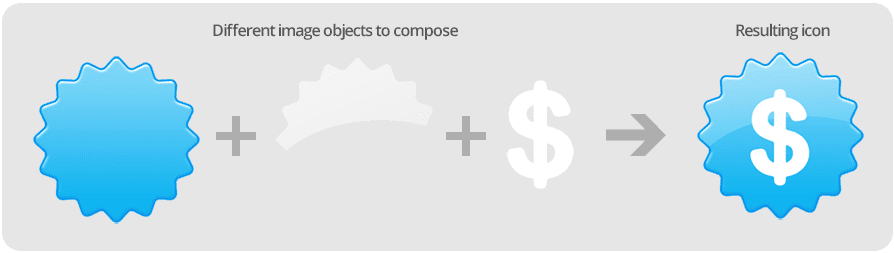
Image Objects and composition
Image Objects remain one of the fastest ways to build icons when you need production speed more than blank-canvas originality. It is still one of the clearest places where IconWorkshop differs from general-purpose image editors.
- Browse reusable object packs from the Librarian and drag them straight into a new composition.
- Stack bases, overlays, and accents, then adjust colors, transparency, and effects until the icon feels product-specific rather than generic.
- Use object-based composition for internal tools, utilities, and administrative UI where speed and consistency matter.
- Combine this workflow with templates, batch output, and platform conversion when a composed icon needs to ship across several operating systems.
Batch processing and conversion
IconWorkshop is built for icon production, not just one-off editing. The current product sources continue to present batch processing as a key reason to keep it in the toolchain.
- Batch-create Windows or macOS icon families from folders of approved source images.
- Convert large sets of ICO files to ICNS, or ICNS files to ICO, without opening every document manually.
- Batch-export icon contents to PNG or other bitmap outputs when a product team needs web, launcher, or documentation assets.
- Normalize legacy icon sets and use the File Explorer as the launch point for repeatable production runs.

Photoshop templates
Photoshop templates solve one of the hardest icon problems: making the smallest sizes look intentional instead of automatically downscaled. This remains a current, practical workflow when the final icon family needs hand-tuned small sizes.
- Use size-specific safe zones so each critical size can be drawn or corrected individually.
- Keep Photoshop as the artwork environment while IconWorkshop assembles the final icon family.
- Apply templates when logos, badges, or product marks break down under automatic scaling.
- Package the result as ICO or ICNS once each size has been checked in context.
Adobe Photoshop and Illustrator integration
IconWorkshop is strongest when it acts as the packaging layer after artwork has already been approved in Adobe tools. The current product material still positions the Adobe bridges as a major productivity feature.
- Transfer artwork directly from Photoshop or Illustrator into IconWorkshop instead of saving intermediate files first.
- Keep PSD or Illustrator documents as the editable design master while IconWorkshop owns ICO, ICNS, PNG, and WebP output.
- The 6.96 changelog explicitly confirms Illustrator plug-in compatibility through the 2026 release.
- The dated 6.95 press release highlights Photoshop and Illustrator 2024 plug-ins, so treat Adobe version specifics as release-dependent and reinstall plug-ins after Adobe upgrades.
Visual Studio workflow
The Visual Studio bridge is best understood today as a maintenance and legacy-product workflow. It is still useful when developers need to edit solution icons in place, but the current product page references older supported Visual Studio versions.
- Open icon resources from Visual Studio, edit them in IconWorkshop, and save the result back into the project context.
- Use the bridge to reduce the friction between source control, resource files, and shipping Windows desktop applications.
- Frame it as a legacy or in-house validated workflow because the public product page names historical plug-ins for Visual Studio 2005, 2008, 2010, and 2012.
- Prefer this path when you are maintaining existing desktop solutions instead of building a new SVG-first UI stack.
Axialis IconVectors, SVG, and WebP workflow
Recent releases shift IconWorkshop further into an SVG-driven production pipeline. The current changelog shows the direction clearly: broader SVG compatibility in 6.96, then smoother Axialis IconVectors integration and WebP handling in 6.97.
- Use Axialis IconVectors as the vector master environment when the icon source of truth is SVG.
- Open SVG artwork in IconWorkshop to render the shipping Windows ICO, macOS ICNS, PNG, and WebP outputs.
- Rely on 6.97 WebP import and export when you need more efficient image delivery or want to move icon derivatives through modern web formats.
- Use the 6.96 SVG compatibility improvements and built-in svgicons.com search to widen the pool of usable vector source files.
File Explorer, Librarian, and asset management
The built-in File Explorer and Librarian turn IconWorkshop into more than a document editor. They help you work through whole asset inventories, keep reusable sources close, and launch production tasks from the same place you browse the files.
- Browse disks, preview files that contain icons, and open the assets you need without leaving the application.
- Store reusable icons, object packs, and references in the Librarian so recurring work stays close to the production workflow.
- Launch batch creation and conversion directly from the explorer view when you are processing folders, not individual files.
- Use the combination of browsing, preview, and batch tooling to audit inherited icon sets faster.
Next pages to review
Convert SVG to ICO
See how IconWorkshop renders a vector master into a multi-resolution Windows icon.
System requirements
Confirm the current Windows compatibility matrix and the minimum and recommended workstation specs.
License model
See the current perpetual-license terms, support position, renewal rules, and developer-seat guidance.
Changelog
Review the current release highlights for 6.97, 6.96, and 6.95 in one place.
Build Cross-Platform Icons with IconWorkshop 6.97
Download the fully functional 30-day trial for Windows, or go straight to the perpetual license checkout.
Windows 7, 8/8.1, 10, and 11. One license per developer, lifetime support, one year of updates included.